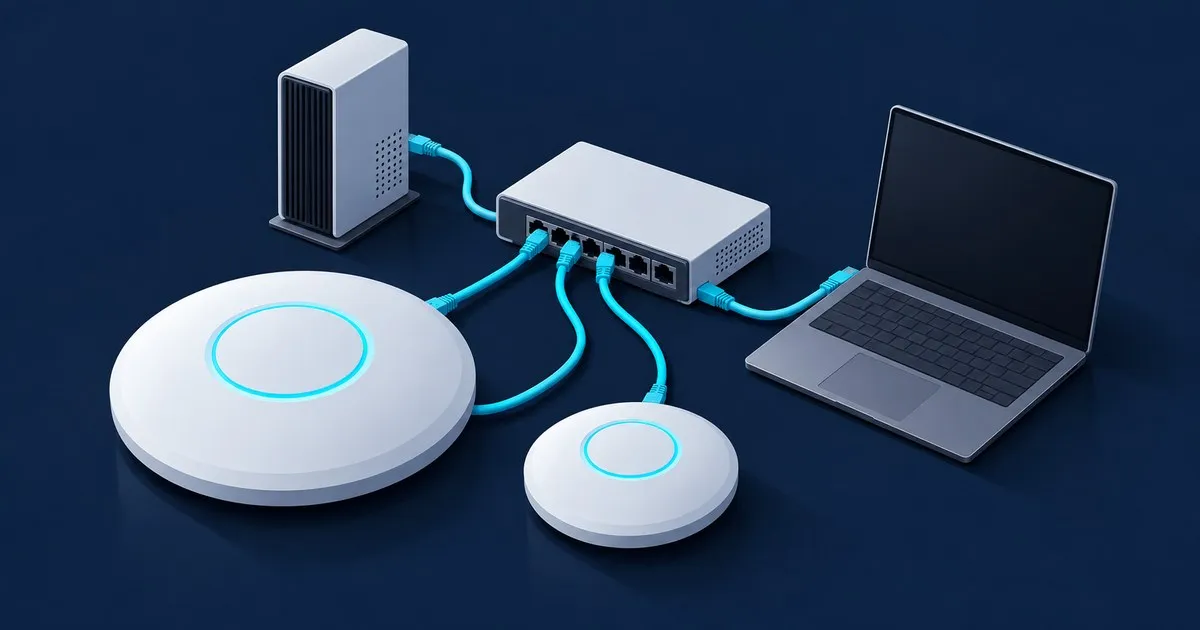
How to adopt UniFi AP manually comes down to four moves: factory reset the AP (hold Reset 5 to 10 seconds), SSH to its DHCP address as ubnt/ubnt or ui/ui, run set-inform http://<controller-ip>:8080/inform, then click Adopt in UniFi Network. If it hangs on Adopting, run set-inform once more. TCP 8080 from AP to controller must be open.
That is the SSH method from Ubiquiti’s Remote Adoption (Layer 3) article. Two methods that skip SSH, DHCP option 43 and a DNS record for unifi, do the same job and work better once you have more than a couple of APs. You only need any of them because normal adoption relies on Layer 2 discovery, and discovery broadcasts stop at the router.
When do you need to adopt a UniFi AP manually?
You need manual (Layer 3) adoption whenever the AP and the UniFi Network Application sit in different broadcast domains: a different VLAN or subnet, a controller on a VPS or hosted service, or a controller reached over a VPN. APs on the controller’s own subnet normally appear as pending adoption without help, because discovery runs on UDP 10001 within the local segment.
The cases that actually send people to SSH:
- You built a management VLAN (VLAN 99, 10.0.99.0/24) following a UniFi VLAN setup guide, and the self-hosted controller lives on VLAN 10 at 10.0.10.5.
- The controller runs on a Linux VM or a cloud instance. Of the places to run the UniFi Network Application, those are the ones where devices never share a segment with it.
- A second-hand AP still holds the previous owner’s inform URL and credentials.
- You migrated controllers, and every existing AP still points at the old address.
If your gateway is a UniFi OS console (UDM Pro, UCG Ultra, Dream Router), the controller is the gateway. The inform target is the gateway IP of whichever network the AP lands on. Ubiquiti’s Device Adoption article gives exactly that as the last-resort fix: set-inform http://<gateway-ip>:8080/inform.
Step 1: Factory reset the AP
Hold the Reset button for 5 to 10 seconds while the AP is powered, or until the LEDs show the restore has started, per Ubiquiti’s reset article. Too short and it just reboots. Too long and it drops into TFTP recovery mode, which is a different procedure. The same article notes that a physical reset does not remove the AP from a controller it was already adopted to. Remove it from the old site under the device’s Manage section, or it sits there as an offline ghost.
Why reset at all? An adopted AP no longer accepts the factory SSH login; it uses the device credentials of the site that adopted it, and it keeps phoning home to that site’s inform URL. Factory default is the only state where the default login works and a new controller can take the device cleanly.
Step 2: SSH into the AP
After the reset, the AP requests a DHCP lease on whatever VLAN the switch port delivers untagged. Find it in your DHCP server’s lease table by the MAC address printed on the label, then connect:
ssh -l ubnt 10.0.99.23The password is ubnt. On newer firmware the pair may be ui/ui; UniHosted’s set-inform guide lists both combinations for APs and switches. If neither is accepted, the AP is not at factory default. Go back to Step 1.
The native VLAN catches people here. A factory-reset AP knows nothing about your 802.1Q tags. If the switch port’s native VLAN (PVID) is your IoT network, that is where the AP gets its lease, and from there it may have no route to TCP 8080 on the controller. Set the AP’s switch port so the management network is native before you reset.
Step 3: Run set-inform, click Adopt, run it again
At the AP’s shell:
set-inform http://10.0.10.5:8080/informAn FQDN works in place of the IP (http://unifi.home.arpa:8080/inform) and survives a controller readdress. Then:
- Open Devices in UniFi Network. The AP shows as pending adoption. Click Adopt.
- If it sits on Adopting, go back to the SSH session and run the identical set-inform again. Ubiquiti’s adoption article says you may need to repeat it after the device appears, and the AP’s own reply says the URL is only saved once it is successfully managed.
- Run
info.Status: Connectedmeans you are done.TimeoutorServer Rejectmeans something is blocking TCP 8080 or the URL has a typo.
Once provisioned, the AP stores the inform URL permanently and switches to your site’s device SSH credentials.
Which ports must be open for manual adoption?
TCP 8080 from the AP to the controller is the hard requirement for Layer 3 adoption; it is the inform channel for adoption, provisioning and every later config push. Allow UDP 3478 (STUN) as well. UDP 10001 only matters for same-segment discovery. Ubiquiti’s Required Ports Reference lists all three:
| Port | Protocol | Direction | Purpose |
|---|---|---|---|
| 8080 | TCP | AP to controller | Inform: adoption, provisioning, stats |
| 3478 | UDP | Both | STUN, device communication |
| 10001 | UDP | To controller | Layer 2 discovery, same subnet only |
On a segmented network with a deny-by-default inter-VLAN policy, the rules in apply order look like this:
- Accept: src 10.0.99.0/24, dst 10.0.10.5, TCP 8080
- Accept: src 10.0.99.0/24, dst 10.0.10.5, UDP 3478
- Accept: established/related return traffic
- Drop: src 10.0.99.0/24, dst 10.0.0.0/8, 172.16.0.0/12, 192.168.0.0/16
Shadowing risk: if the inter-VLAN drop sits above rule 1, info reports Timeout forever and nothing else tells you why. Exceptions go first.
Adopting across the internet means port-forwarding TCP 8080 to the controller. Per Ubiquiti, that only works when the gateway holds a public WAN address; behind double NAT or CGNAT it fails. It also leaves a management port facing the internet, which you then have to patch and watch. A WireGuard tunnel back to your UniFi gateway makes the remote AP effectively local and exposes nothing.
How do DHCP option 43 and DNS adoption work?
Both methods tell a factory-default AP where the controller lives without anyone logging into it. Option 43 carries the controller IP inside the DHCP lease; the DNS method answers the AP’s built-in lookup of the hostname unifi. Ubiquiti notes that a device cycles through every inform source and adopts to whichever controller answers first, so run exactly one controller per network.
DHCP option 43
RFC 2132, DHCP Options and BOOTP Vendor Extensions, defines option 43 as Vendor Specific Information: an opaque byte string that vendors can structure as encapsulated sub-options. UniFi reads sub-option 01, length 04, then the controller’s IPv4 address as four hex bytes. For 10.0.10.5:
printf '0104%02x%02x%02x%02x\n' 10 0 10 5
# 01040a000a05
Where that value goes:
- UniFi gateway: no hex. Type the controller IP into the Option 43 field in the network’s DHCP settings (Settings > Networks > [network]).
- pfSense or OPNsense (ISC DHCP): additional DHCP option, number 43, type String, value
01:04:0a:00:0a:05. - MikroTik RouterOS:
/ip dhcp-server option add name=unifi code=43 value=0x01040a000a05, then/ip dhcp-server network set [find address="10.0.99.0/24"] dhcp-option=unifi. - dnsmasq or Pi-hole:
dhcp-option=vendor:ubnt,1,10.0.10.5. - Windows Server DHCP: scope option 43, binary
01040a000a05.
The classic failure is a DHCP server that sends the value as ASCII text instead of raw bytes. Capture the DHCP exchange in Wireshark with the filter dhcp.option.type == 43 and read the actual bytes. If you see 30 31 30 34 where 01 04 should be, the server is quoting your hex as a string.
DNS: the unifi hostname
A factory-default AP tries http://unifi:8080/inform on its own. Create a local A record for unifi pointing at 10.0.10.5 on whatever resolver the management VLAN uses: UniFi gateway local DNS records, an Unbound host override, or Pi-hole local DNS. If the DHCP scope hands out a search domain, add unifi.<that-domain> too. Verify from a host on VLAN 99:
dig +search +short unifi
nc -vz 10.0.10.5 8080
The first should return 10.0.10.5; the second should report the port open. DNS is the cleanest method at scale, because a controller move means updating one record instead of re-running set-inform on every AP.
Why is my AP stuck after set-inform?
Most stuck adoptions are reachability problems, not firmware bugs, so read info before changing anything. Timeout means TCP 8080 never answered: wrong IP, missing route, or a firewall drop. On Server Reject, check the URL for typos first, then factory reset the AP if it was ever adopted anywhere else.
After that, match the symptom:
- Stuck on Adopting: run set-inform a second time after clicking Adopt.
- Reboot loop mid-provisioning: suspect marginal PoE before software. Confirm the port’s PoE mode and the PoE budget on your switch cover the AP’s draw.
- Managed by Other: the AP remembers a different controller. Remove it there, or reset it.
- Adopts, then goes Disconnected: often the AP was moved to a VLAN without the 8080 exception. Add the rule before changing its network.
- Very old firmware: let it upgrade right after adoption, and follow a sane firmware update order so the controller is never behind the devices.
FAQ
what is the default ssh password for a unifi ap
A factory-reset UniFi access point accepts ubnt as both username and password, and newer firmware may use ui for both instead. Those defaults only work at factory default. Once adopted, the AP uses the device SSH credentials configured on your UniFi site, so reset it first if the defaults are rejected.
does set-inform survive a reboot
Not until the AP is adopted. The inform URL you set is only saved permanently once the device is successfully managed, which is why the command sometimes has to be run twice. If the AP reboots before you click Adopt, expect to repeat set-inform, so adopt promptly after running it the first time.
can i adopt a unifi ap without a controller
Yes, in standalone mode through the UniFi mobile app: scan the QR code on the AP and set it up without UniFi. Ubiquiti’s standalone mode has real limits: each AP is configured individually, with no seamless roaming between APs, no remote management and no wireless meshing. For two or more APs, run a controller.
how do i move unifi aps to a new controller
Restore a backup of your site on the new controller, then repoint each AP at the new inform URL with set-inform, or update the DNS record or option 43 value they rely on. Because the APs are already adopted, SSH in with your site’s device credentials rather than the factory defaults. Our migration guide covers the order.
Related across the network
- UniFi Adoption Failed: How to Fix Stuck Devices — ubiquitiguide.com
- UniFi Home Network Setup: What to Buy First — ubiquitiguide.com


